
PlanTest uses only a main application menu (with sub-menus). However, we put the menu into the title bar, and split the menu to the left and right, with the right menu containing the settings sub-menus for Options and Layouts.
Info: This document addresses only the left menu. For Options and Layouts follow the links to the comprehensive documents.

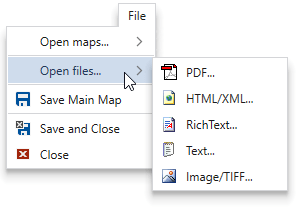
| Menu Item | Sub-menu Item | Description |
|---|---|---|
| Open maps... | ||
| Inset | Open or Show the Inset Map | |
| Map | Open ESRI map file | |
| Open files... | ||
| Open PDF file | ||
| HTML/XML | Open HTML or XML file | |
| Text | Open Text (ASCII) file | |
| TIFF | Open TIFF file (raster) | |
| Save Main Map | Save the main map current state | |
| Save and Close | Save the examination and close PlanTest | |
| Close | Close PlanTest (if recording, also saves exam results) |
The File menu follows the standard Windows use, to open different types of files, save files, and close the application. Here are a few details:
The Import menu is jurisdiction specific.
Modify for each site, remove non-applicable material.
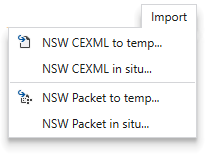
CEXML is in use by sites using the cadastral fabric data model of overlying surveys. The import menu is used in testing, or other special purposes. Production uses integrated job control loading. Packet files contain information on the data CEXML, the plan to be examined, and any reference images.

| Menu Item | Description |
|---|---|
| CEXML to temp | Loads CEXML data and creates map doc in user temp folder. Automatically removed after use. |
| CEXML in situ | Loads CEXML data and map doc in same folder as the data file. Map doc is not removed after use. |
| Packet to temp | Loads referenced data and creates working files in the user's temp folder. Automatically deleted after use. |
| Packet in situ | Loads reference data and creates working files in same folder as the packet file. Files are not deleted after use. |
Singapore production uses services to load SGLX data. The import menu is used primarily outside the cadastre, or for special testing using data files not in the system.
| Menu Item | Description |
|---|---|
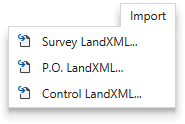
| Survey LandXML | Loads survey data from file and creates map doc in user temp folder. Automatically removed after use. |
| P.O. LandXML | Loads per original data from file and creates map doc in user temp folder. Automatically removed after use. |
| Control LandXML | Loads control data from file and creates map doc in user temp folder. Automatically removed after use. |

| Menu Item | Description |
|---|---|
| Start/Stop Recording | Toggles recording of examination on or off. |
| Run All Tests | Run all analytic tests as a 'batch', then open R&D. |
| Run Undecided | Run any analytic tests for steps with no decision. |
| Results & Decisions | Show Results & Decisions window. |
| Save Local | Save a examination to a local file. |
| Quit Examination | Remove plan from examination. Do not close PlanTest. |
| Menu Item | Description |
|---|---|
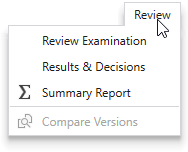
| Review Examination | Opens the Examination Review Report. |
| Results & Decisions | Shows the R&D window. |
| Summary Report | Opens the Summary Report. |
| Compare Versions | Opens the Compare Versions Report. |
The Review menu is used to open special reports on the state of the examination.

| Menu Item | Description | |
|---|---|---|
 |
Workflow | Shows the Workflow window. |
 |
Results & Decisions | Shows the R&D window. |
 |
Test Results | Shows the Test Results window. |
 |
Tool Results | Shows the Tool Results window. |
 |
Fabric | Shows the Fabric window. |
 |
Graphics | Shows the Graphics window. |
 |
Main Map | Shows the Main Map window. |
 |
Inset Map | Shows the Tool Results window. |
 |
Map Key | Shows the Map Key window. |
| User Windows | Show selected user window. |

The Reference menu is dynamically created from the contents of a specified folder, which could be shared on the site network. Any documents placed in the folder will show in the sub-menu. When selected the document will be opened in a PlanTest window.

| Group | Icon | Menu Item | Description |
|---|---|---|---|
| Active Windows | |||
 |
Float | Float (undock) the active window. | |
 |
Dock | Dock the active window to its standard dock-site. | |
 |
Dock as Document | Dock active window in the documents dock-site (main group). | |
| Auto Hide | Collapse docked active window to tab. | ||
| Delete | Delete (remove) the active window. If core window, close. | ||
| Tool Windows | |||
| Hide Tool Windows | Collapse all docked tool windows to tabs. | ||
| Show Tool Windows | Open all tool windows in docked positions. | ||
| Document Windows | |||
 |
New Horizontal Document Group | Create a new document group arranged below the current document group. | |
 |
New Vertical Document Group | Create a new document group arranged to the side of the current document group. | |
| Tile Horizontally | Arrange document windows side-by-side in the documents dock-site. | ||
| Tile Vertically | Arrange document windows over-under in the documents dock-site. |
