
Application layouts contain all the information to restore specific PlanTest windows locations grouping and themes, even across multiple monitors, as well as all user setting for a particular purpose or environment. The aim is to respond to different hardware configurations, such as in the office with multiple monitors, travel with laptop screen only, home use, and when connected to projectors. Layouts can also be useful when specific layouts and options are needed for different purposes or stages of examination.
If you have set the option to use the layout and settings in effect when you closed PlanTest, they will be used on the next startup. This will save any short term options or layout changes you have made, without the need to save a named layout.
Options Application Use Last UI on Startup
PlanTest has a toggle button on the main toolbar to allow for a quick switch between light and dark modes.
Maps have their own toggle button to change their mode, without affecting the application mode. When switching, the Application Theme in use is the one that will be used when you switch back.
The last used light mode and dark mode will be used when toggling dark/light. So your preferences for both are preserved within the session.
To save the current layout, go to Layouts Save Layout enter a name, spaces are ok. If there is another layout with the same name, you will be given the option to replace it.
Layouts contain the examiner's options settings as well as the information related to all PlanTest controls and windows at the time the layout was created or updated. Changes to layout and settings after applying a layout do not affect the saved layout.
To apply a layout, go to Layouts Apply layout and select the desired layout from the list.

Warning: If you apply a layout to a hardware configuration that does not match the creation configuration, results may vary.
To modify a saved layout...
Options menu settings as desired.Layouts Manage layouts from the Layouts menuLayouts Manage layouts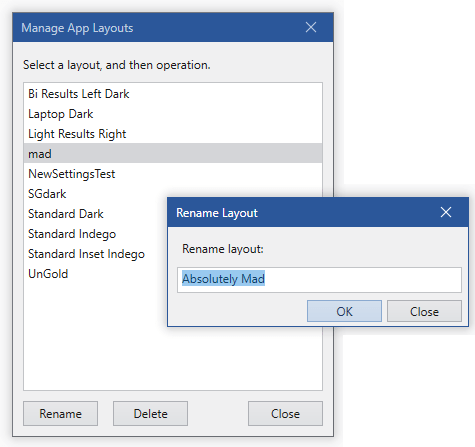
If for any reason you need to reset the application layout to the default...
Layouts Reset layout from the Layouts menu.Under certain conditions, such as hardware changes or PlanTest version updates, you may find some saved layouts do not load. Simply delete or replace them.