Windows are the basic organizational unit of the PlanTest work space. Learning how to manipulate windows and their components to create the best working environment for you is very important. This section describes the key features and functions so you can be t a clear understanding of how to get things done.
Most window functions can be accessed via the Main Menus or via a window's context menu.
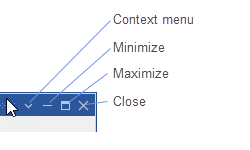
View on the main menu to show or focus Application Windows and User Windows.Window on the main menu to act on the focus window or on several windows at a time.Every standard window has an icon group in the top right corner of the title bar. In PlanTest, they are only found when floating (undocked). The drop down arrow icon opens a context menu. Maximize and Minimize are the same as any other Windows window controls. The 'x' icon will close the window.
Important! Unlike Microsoft windows, closed windows are completely hidden but not removed. You can open them again from Main Menu View. It is a dynamic menu, and all PlanTest windows, including current user windows may be accessed.
When a window is docked, the Maximize and Minimize tools are replaced with the Auto-hide icon. The push-pin icon is used toggle between the open window or the window collapsed to a tab.

When a window is docked, the Maximize and Minimize tools are replaced with the Auto-hide icon. The push-pin icon is used toggle between the open window or the window collapsed to a tab.
Handles on windows work just like any other Microsoft window. You can drag a docked window by its tab, or a floating window by its toolbar.
You can also resize a floating window as you would any other Microsoft window.
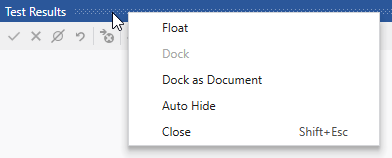
Any window will display a context menu when you right-click the title bar of the window. The context menu has options that only act on the active window. The content of the menu will depend on the window type and state.
Toolbars are docked within windows. The standard location is at the top of the window below the title bar. However, several PlanTest windows allow you to dock to any side. These positions are saved as part of the layout.

Note: When using multiple monitor layouts, toolbar positions are important in efficient use the the mouse by minimizing distance between frequently used controls. Try layouts that centralize toolbars.
The main window toolbars can be rearranged, but are only docked at the top. However, the main map toolbars can be moved to the main map window, where they can be docked to any side.
Many of these functions can also be accessed from the Window menu, shown below.

You can zoom the contents of many PlanTest results, report and map windows by scaling the page or map using the mouse wheel.
Use the mouse scroll wheel while hovering over the page.
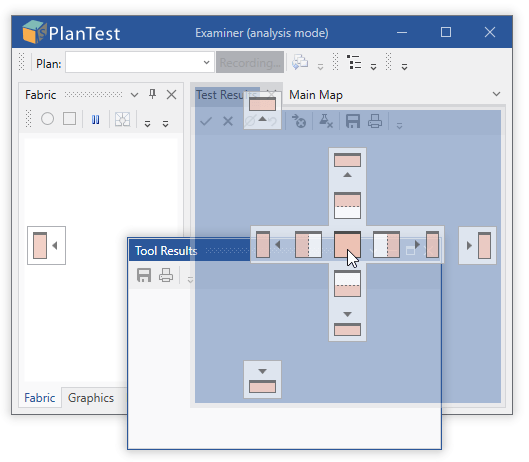
To dock a window, grab its title bar, or tab if already docked, and start drag. Once dragging, guide positions will be shown. Select a guide positions and release. The inner guide positions dock the window inside another window, group, or dock site.

(caption)Tool Results window in process of being docked on right using guides.

(caption)Tool Results window docked to the right.
Dock any window in the central tabbed document group. Originally intended to display working and reference documents that need a larger region to display their information efficiently. If you have multiple monitors you can float documents or create new document tabbed groups on secondary screens.

Float (undock) any window by dragging A tool or document window that is in Floating state is within a rafting window. A tool window can be in a rafting window by itself or as part of a tool window hierarchy. The rafting window can be moved anywhere above the dock site hierarchy and can be docked during drag operations. The rafting window can be maximized or restored.

Click the pushpin icon in the in the top right corner of the window (pushpin), it will stay open when the cursor moves away from the window.
A tool window is in auto-hide state when its tab appears along one of four outer edges of a dock site. Hovering over the tab makes the tool window's content slide into view. The content remains visible while it has focus or the mouse is over it. When the focus and mouse leave the content area, the tool window slides back out of view, while its tab remains visible. If you click the auto-hide button in the in the top right corner of the window (pushpin), it will stay open when the cursor moves away from the window.

You can hide all tool windows to maximize screen space for the document windows - usually the map but also any other documents you may have loaded.
Window on the main menu and select "Hide Tool Windows".Windows may be grouped together in one container with a single title bar, and tabs for each grouped window.
by dragging one over another by document context menu, new vertical or horizontal group
Float or re-dock group by grabbing the shared window title bar as the handle. Then just use the same method as you would use for a single window.
To open closed windows go to View on the main menu and select the window you want to open. The menu is dynamically updated with "user" windows, which includes any special reports or other documents you have used. If you want top open a core PlanTest window, you can also use the main toolbar.