
These settings control how the map reacts to events, such as selecting a record in a Test Results table, or what to do after a test has finished.
This option will pan the map to bring a feature of interest into view. It will only zoom the map if necessary to bring all of the feature into the view. Like the other options here, it is triggered when you select a table record, or choose "Next Error". The best thing about this option is that it does not zoom the map unless it is necessary, thus making it easier to track features. Zooming an be disorienting, especially if you are working with controls or points.
[could have a video capture to show effect]
This option will surround a map feature with an outline to make it easy to identify. It is triggered when you select a row in the result table or select the "Next Error" button. The outline persists until you make another selection or choose the "Clear Graphics" button.
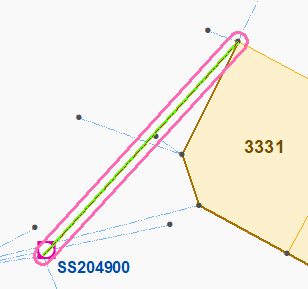
When you select a record in a test results table, or click on "Next Error", this option will flash the specific feature related to that record. Flash means to temporarily show a different drawing color for the feature, so you can easily locate it.
[video?]
Some analytic tests product a selection of features that are of concern or interest. This option will zoom the map to the extent of any selection.