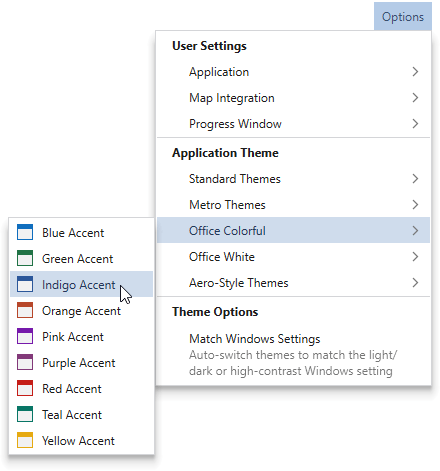
PlanTest 4.0 introduces more dynamic styling and an extensive selection of themes from which you can choose. Several families of themes are available: Standard Windows themes, Metro style themes, Microsoft Office themes and the older Aero style themes first introduced in Windows 7.
Find the style and colors you like best, or that suite your situation or mood. We use the Office Colorful Indigo Accent as the default theme for PlanTest and the images in this manual. That does not mean it is the best. We work a lot in dark mode when coding, because colors and contrast in text are better. However, we often use different light mode color accents just for a bit of variety.
Standard and Metro themes include dark mode themes. In low light conditions, dark mode screens are easier on the eyes (better contrast, improved readability of text, reduced eye fatigue, less blue light). In bright light conditions, dark mode screens can suffer from increased reflections and glare. In recent years, dark mode has become quite popular, especially with those who work remotely or at night. Some people love dark mode, some don't. Our experience is that it depends on the situation. Oh, dark mode significantly saves on battery power, and is really useful when traveling.

Our Preference - We prefer Metro Dark for dark mode as it has a thin blue outline for the windows. Without the outline, as in Standard Dark, overlap between windows can be difficult to see, leading to mistakes. This is even more pronounced in the "Black" themes.
If you switch Windows themes between light and dark, or even high contrast, then you may prefer to use the "Match Windows Settings" option. This will ensure your desktop and PlanTest are using the same theme.
High Contrast! Windows has a preference setting for high contrast mode. NOT DEVELOPMENT COMPLETE!. Need to set up for map, and the CSS switching. All other controls work as expected.