These short topics are discussed together as they are the basic use issues of windows that should be quickly learned, if you do not know them already. The only non-standard features are Auto-hide and the PlanTest use of "Close" vs "Remove".
Short Topics
Every standard window has an icon group in the top right corner of the title bar. In PlanTest, they are only found when floating (undocked). The drop down arrow icon opens a context menu. Maximize and Minimize are the same as any other Windows window controls. The 'x' icon will close the window.
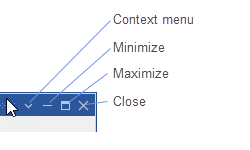
Important! Unlike Microsoft windows, closed windows are completely hidden but not removed. You can open them again from Main Menu View. It is a dynamic menu, and all PlanTest windows, including current user windows may be accessed.
When a window is docked, the Maximize and Minimize tools are replaced with the Auto-hide icon. The push-pin icon is used toggle between the open window or the window collapsed to a tab.

When a window is docked, the Maximize and Minimize tools are replaced with the Auto-hide icon. The push-pin icon is used toggle between the open window or the window collapsed to a tab.
Handles on windows work just like any other Microsoft window. You can drag a docked window by its tab, or a floating window by its toolbar.
You can also resize a floating window as you would any other Microsoft window.
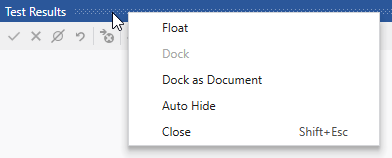
Any window will display a context menu when you right-click the title bar of the window. The context menu has options that only act on the active window. The content of the menu will depend on the window type and state.
The main window toolbars can be rearranged, but are only docked at the top. However, the main map toolbars can be moved to the main map window, where they can be docked to any side.
To open closed windows go to View on the main menu and select the window you want to open. The menu is dynamically updated with "user" windows, which includes any special reports or other documents you have used. If you want top open a core PlanTest window, you can also use the main toolbar.